Executive Summary
Gmail files your bulk email under Promotions for a reason: it reads signals from your sending history and the way each message is built. This guide walks through those signals one at a time and shows you which ones you can actually change. You will not win every inbox, but you can stop handing Gmail the reasons to move you aside.
First, Understand What the Promotions Tab Actually Is
Gmail split its inbox into tabs back in 2013. Mail now sorts into Primary, Social, Promotions, Updates and Forums. The Promotions tab is a separate folder where your message still arrives; it just lands one tab over and open rates fall because fewer people ever click that tab.
Google has said the sorting leans on how recipients treat your mail over time. When enough people open or reply, the system starts to treat you differently. That behavior is the strongest lever you have.
The Signals Gmail Reads Before It Files You
Think of Gmail as a reader that watches four things at once: who you are, how your list behaves, what your message looks like and whether people want it. Change one and the others still count. That is why a single tweak rarely flips placement on its own.
Step 1: Prove You Are a Real Sender
Start with authentication. Set up SPF and DKIM records for your sending domain. This tells Gmail the mail genuinely came from you and that nobody forged it.
Skip this and Gmail will treat your messages like a spoofed phishing attempt. Check your DNS records, then confirm each one passes using a mail-tester tool or your ESP’s built-in report.
Look at your DMARC policy too. A policy of p=none only monitors. Moving toward p=quarantine signals you stand behind your domain.
Step 2: Add a Working One-Click Unsubscribe
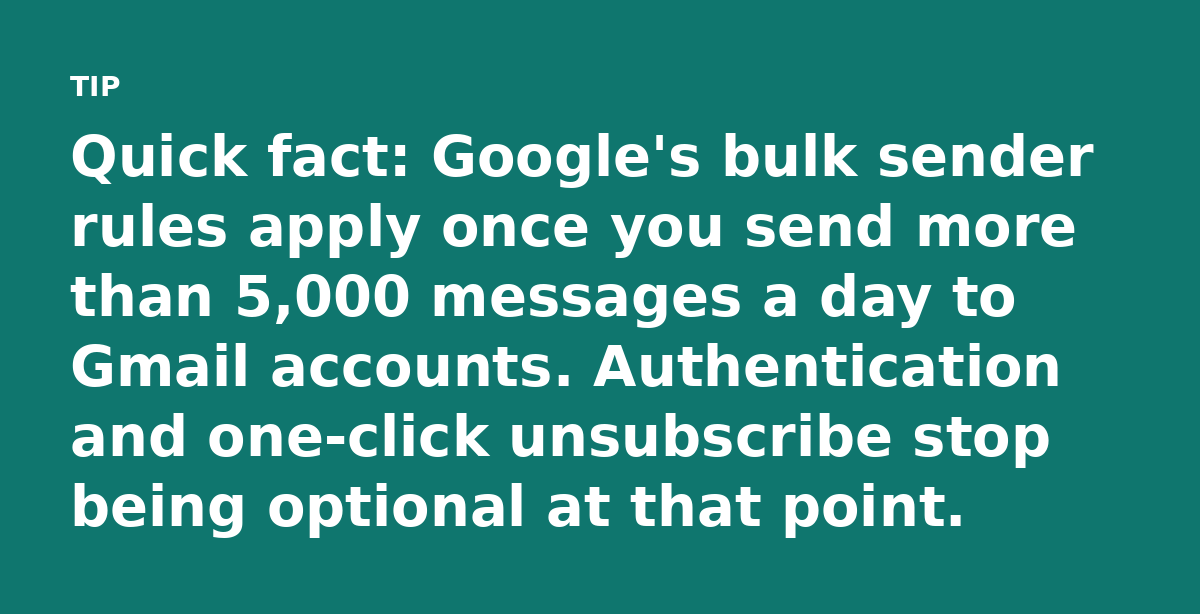
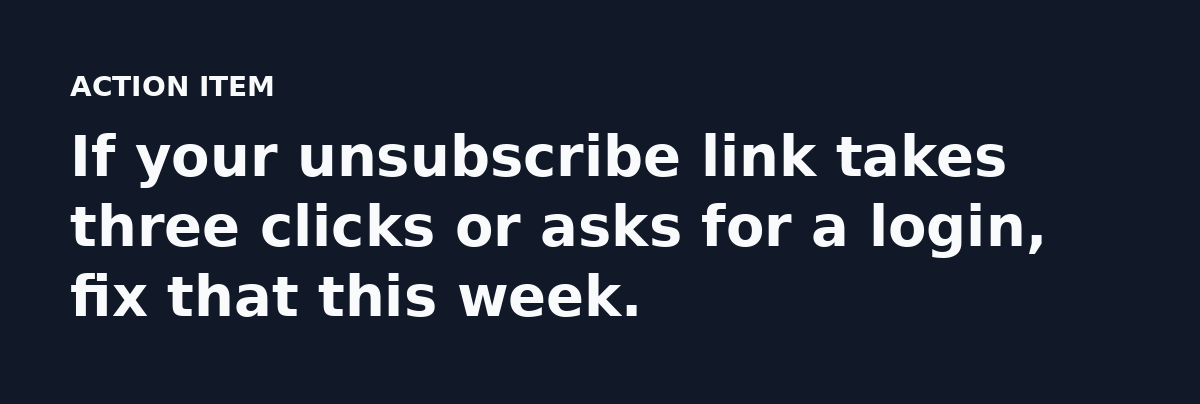
Gmail looks for the List-Unsubscribe header. Add it and add the List-Unsubscribe-Post header so a single click works without opening a browser.
This feels backward. Why make leaving easy? Because a person who clicks unsubscribe is far cheaper than a person who hits “report spam.” Google tracks those complaints closely. Keep your complaint rate under 0.1% in Google Postmaster Tools; Google treats 0.3% as the line that triggers trouble.
Step 3: Watch Your Image-to-Text Balance
A message built like a single giant image reads as an ad to any filter, because Gmail cannot scan the words inside it.
Keep a healthy amount of real text in the body, with images supporting the core message. A ratio near 80% text and 20% images is a safe working target for most newsletters.
Add clean alt text to every image; it helps when images are blocked and gives Gmail something to read.
Step 4: Read the Content Cues You Send
Certain words and patterns push mail toward Promotions. Heavy sales language like “limited time” or a wall of discount codes all point the same direction. So does a subject line that shouts in capitals.
You can still sell, but write like a person. Put a real name on the from line and keep the subject line plain and specific. Skip the fake urgency that every other brand already uses.
Step 5: Feed the Engagement Loop
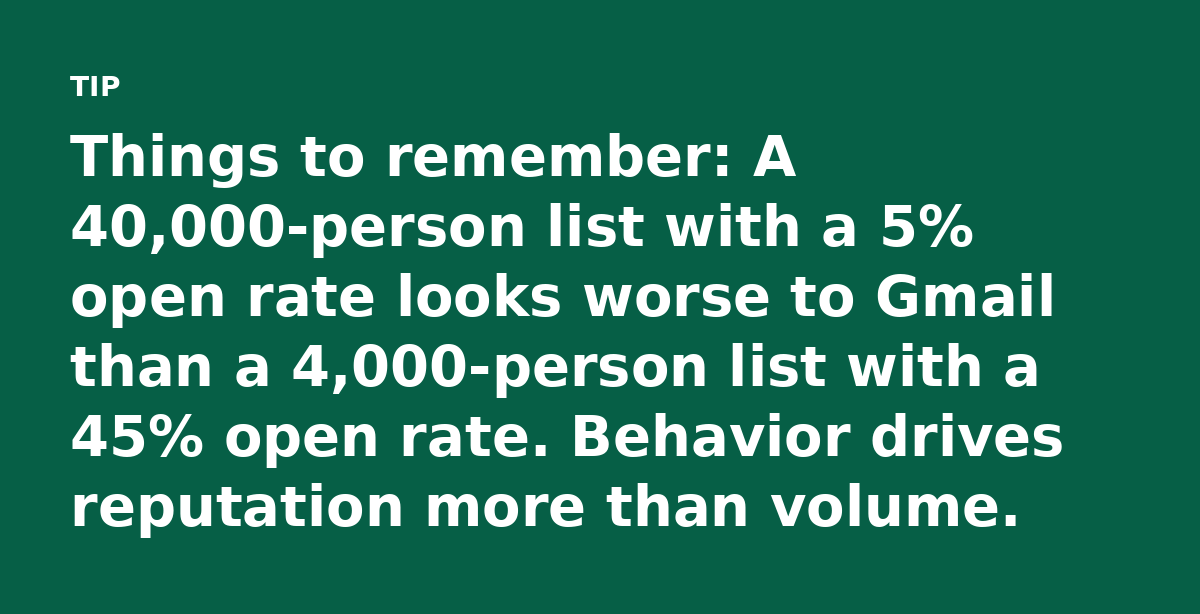
Gmail watches what your recipients do. Opens, replies, forwards and moves to Primary all count in your favor. Deletes without opening and spam reports count against you.
Send only to people who actually want your mail and remove addresses that have not opened anything in six months or more.
Ask readers to reply. A reply is one of the strongest positive signals you can create and most senders never bother.
Step 6: Test Placement Before You Blame the Tab
Do not guess where your mail lands: send a test to Gmail accounts you control and check the tab. Use a seed-list tool if you send at scale. Track results in Google Postmaster Tools to see reputation and spam rate over time.
Run one change at a time: change the header and measure, then change the content mix and measure. When you alter five things at once you learn nothing about which one mattered.
What You Cannot Control
Some placement depends on the recipient. If a subscriber marks every brand as promotional, your mail may sort there no matter how clean your setup is. You also cannot force Gmail to ignore an old reputation problem overnight.
What you can do is remove every fixable reason. That pushes the odds in your favor and it compounds across every send.
Your Action Plan for This Week
- Verify your email authentication passes for your main sending domain.
- Add the List-Unsubscribe and List-Unsubscribe-Post headers, then test one-click.
- Rewrite one recent campaign so plain text carries the message instead of a single image.
- Cut your least engaged segment and send the next campaign only to active readers.
The One Thing to Do First
Pull up Google Postmaster Tools and read your spam rate and reputation today. Those numbers tell you whether this is a trust problem or a content problem. Fix trust before you touch a single subject line, because no clever wording saves a sender Gmail does not believe.
Read the full guide: Email Deliverability Myths That Trap Brands in the Promotions Tab